
Black Ops II can reach real gameplay locally on Android with an owned Steam installation and DroidDeck. This guide preserves the setup documented on October 11, 2026: a short public Multiplayer test and a Zombies Solo Farm test on one RedMagic NX809J. The phone ran the game itself.
The launch fix
Inside DroidDeck’s native Linux Steam client, select Proton Experimental ARM64 (Compatible) for the game. Enter this exact line in Steam’s Launch Options:
WINESTEAMNOEXEC=0 %command%Keep %command% intact. Save the setting on the Multiplayer and Zombies entries separately. It is a Steam setting, not a command to run in an Android terminal.
The documented stock launch stopped with No SteamClient014. This setting resolved that Steam-interface failure in the tested configuration. It does not establish a fix for every game, runtime, or phone.
Requirements and tested versions
- A Steam account that owns Black Ops II and the components you want to play.
- Space for DroidDeck’s runtime and desktop plus the complete game installation. One component’s download size is not the total.
- Internet access for installation, Steam authentication, and online play.
- A device meeting the official DroidDeck requirements. The result here applies to the device below.
- A usable input method. Touch controls were available; physical controller models were not verified in this test.
| Component | Recorded value |
|---|---|
| Phone | RedMagic NX809J |
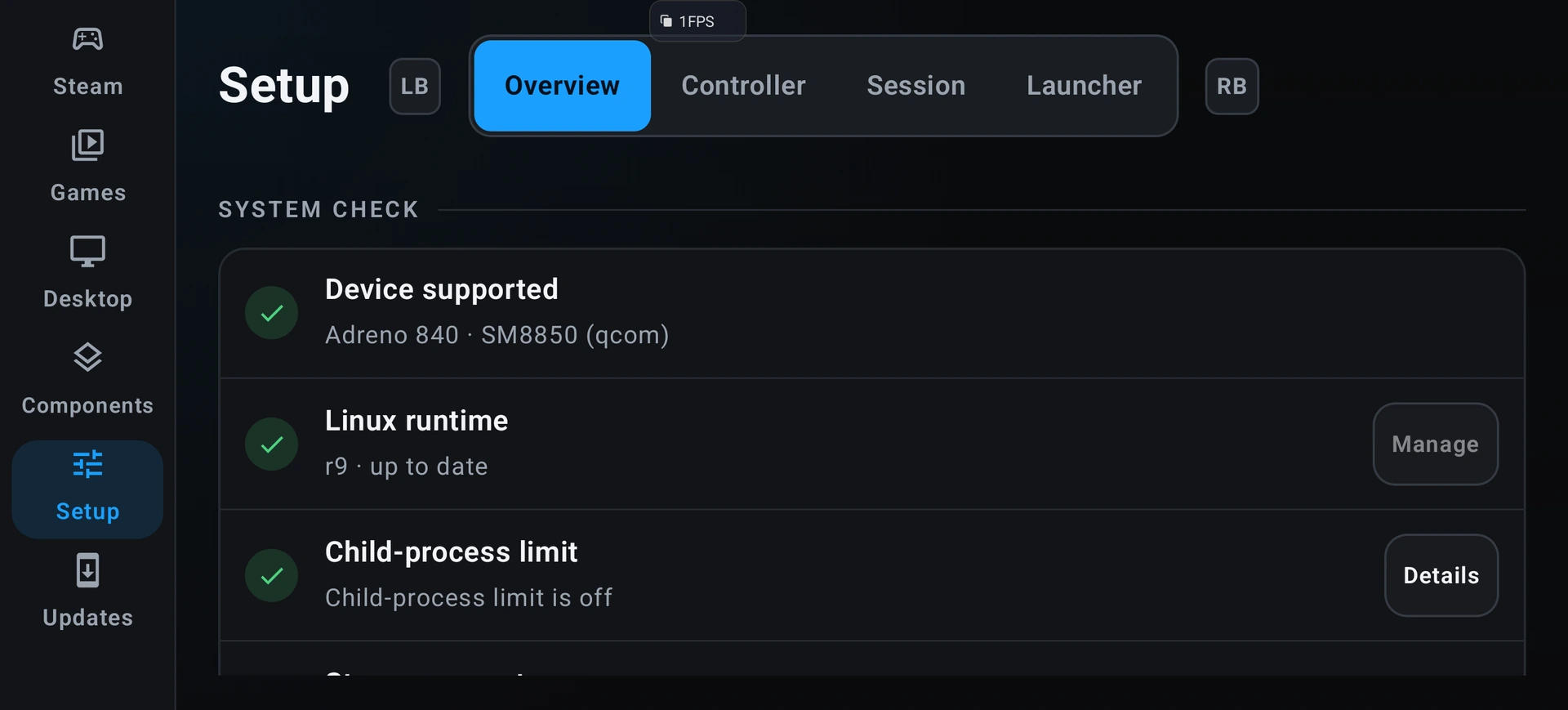
| Processor / GPU | Snapdragon 8 Elite Gen 5 / Adreno 840 |
| Android | 16 |
| DroidDeck / Linux runtime | 0.3.2 / r9 |
| Steam | Native Linux Steam in DroidDeck, signed in and online |
| Compatibility tool | Proton Experimental ARM64 (Compatible) |
| Proton runtime | experimental-11.0-20260924-arm64, build 1790245028 |
| Observed bundled graphics runtime | DXVK v3.1.1-27-g25ca63f17f34bdc; Turnip Mesa 26.2.99 |
No separate GPU driver installation was used. These are recorded versions, not a claim that they are the newest releases or that another Proton build will behave the same way.
Install DroidDeck and the complete game
- Get DroidDeck from its official project. The original test used the 0.3.2 release. Complete installation of the Linux runtime and Desktop component.
- For the recorded setup, Android Developer options → Restrict child processes was off. Check DroidDeck Setup → Overview for the child-process limit. If your device lacks that Android switch, use the project’s documented setup assistance rather than copying commands for an unrelated phone.
- Open DroidDeck → Desktop → Open desktop. Start native Steam, wait for its first-run download, and sign in.
- Install the base game, Multiplayer, and Zombies into the same native Steam library. Let all downloads and first-run setup finish.
- If Steam offers streaming from another computer, select a local installation on the phone.
- If you are reusing a modified or incomplete folder, restore the original installation with Properties → Installed Files → Verify integrity of game files for all three components.
| Steam Library entry | App ID |
|---|---|
| Call of Duty: Black Ops II | 202970 |
| Call of Duty: Black Ops II – Multiplayer | 202990 |
| Call of Duty: Black Ops II – Zombies | 212910 |
Zombies needs shared base-game sound and image assets. Copying only t6zm.exe, or a small Zombies folder, does not reproduce this installation. The test’s shared folder was ~/.local/share/Steam/steamapps/common/Call of Duty Black Ops II; your selected Steam library may use another location.
Apply the Steam setting to each mode
- Choose the Multiplayer entry in Steam Library and open its gear menu, then Properties.
- Under Compatibility, select Proton Experimental ARM64 (Compatible).
- Under General → Launch Options, enter
WINESTEAMNOEXEC=0 %command%. - Close Properties and repeat the same steps for the Zombies entry.
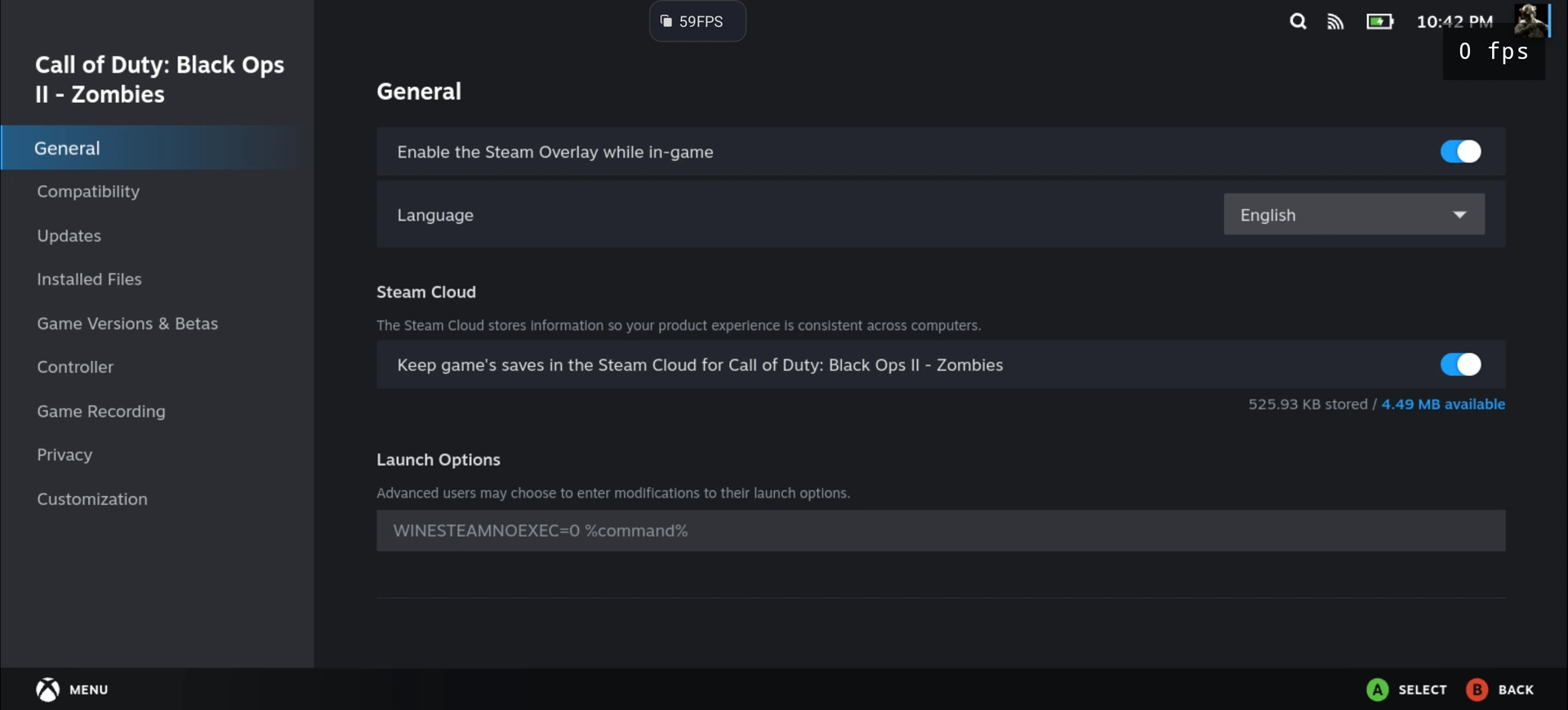
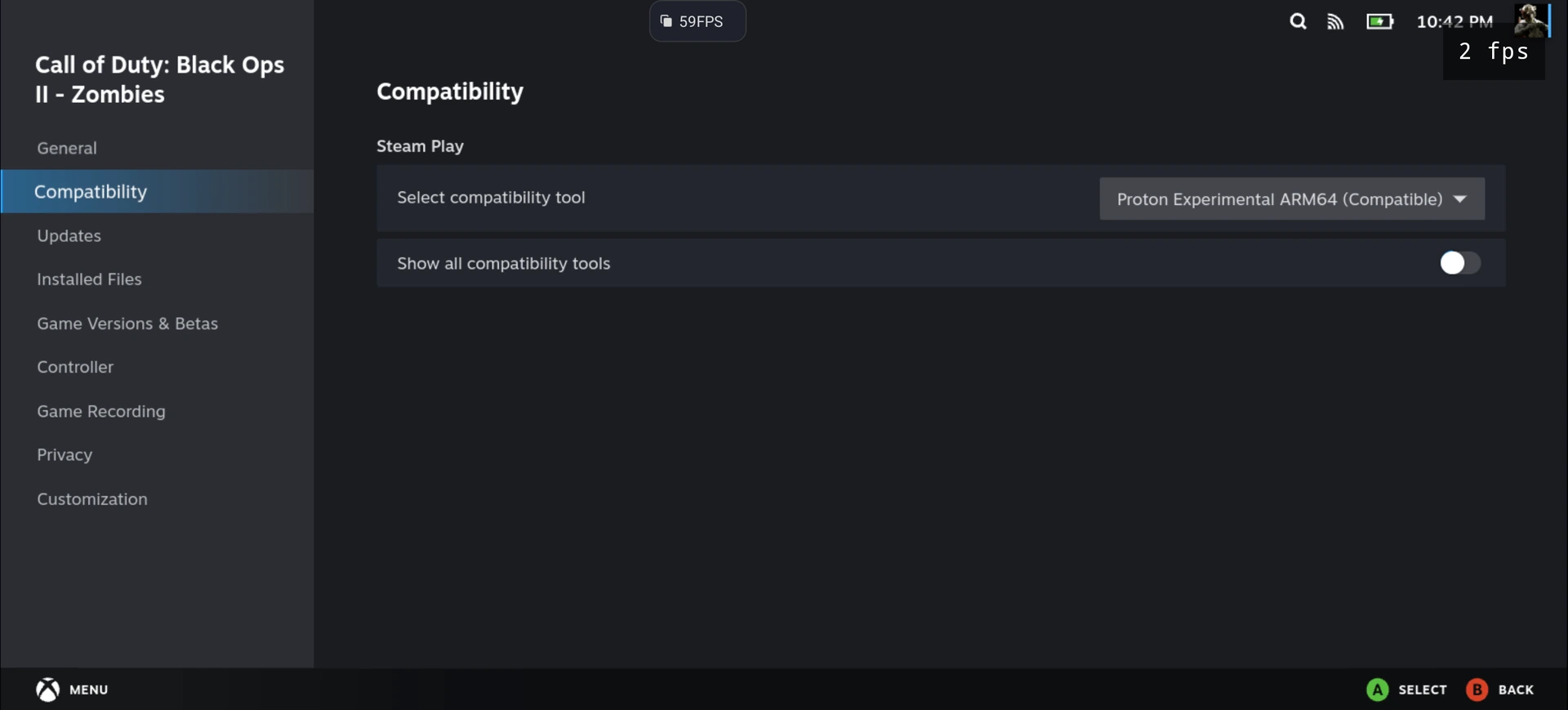
Steam stores these options per game. The Multiplayer option survived a complete DroidDeck session restart in the source test. Editing DroidDeck’s generated game-environment.json is unnecessary and can leave a change that disappears when the file is regenerated.
Launch Multiplayer or Zombies
Wait for Steam to finish opening, then press Play on the official entry for the mode.
- Multiplayer: Online → Public Match → Find Match → Core → Team Deathmatch. The recorded session joined Carrier and spawned into the match.
- Zombies: Online → Solo Play → Green Run → Farm → Survival → Start Match. Let loading finish; the verified result was Farm round 1.
Quit through the game menu before starting the other component from Steam Library. After leaving the game, DroidDeck’s Stop control ends the session. Ordinary launches do not require the ADB diagnostics used while investigating the issue.
Reproduce the settings
The launch option was isolated as the Steam-interface fix. The remaining values describe the successful test; they were not each proven necessary.
DroidDeck and Steam
| Setting | October 11 value |
|---|---|
| Session resolution | 1590 × 720 |
| Scaling filter | Linear |
| Frame limit / HDR10 | Off / Off |
| GPU driver selection | Auto · DroidDeck · DD-Turnip |
| DirectAudio for games / Steam audio | On / DirectAudio |
| Microphone | Off |
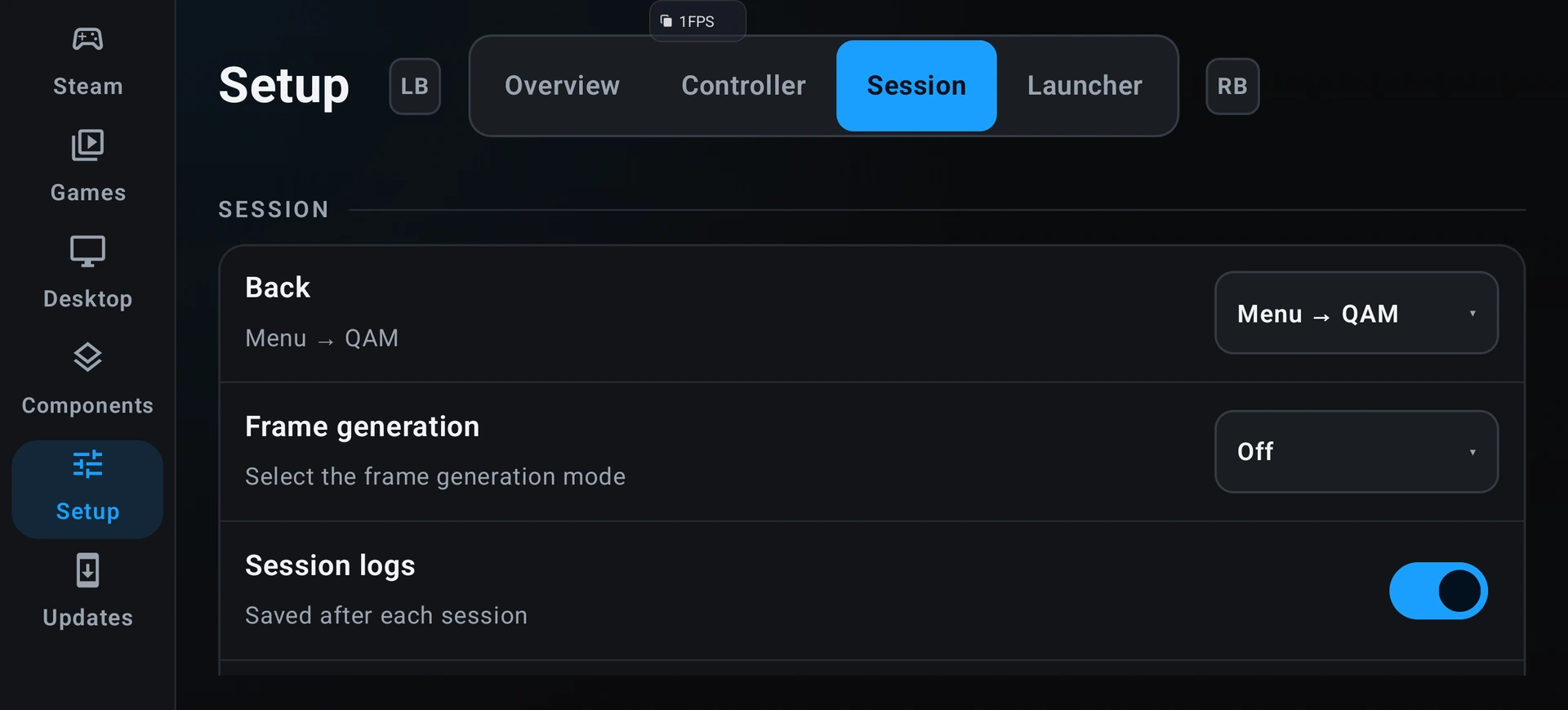
| Frame generation | Off |
| Back action | Menu → QAM |
| Session logs | On during testing |
| Touch / vibration | Direct / On |
| On-screen controls | Hidden during recording; enable controls for play |
| Steam language / Overlay / Cloud | English / On / On |
| Big Picture maximum game resolution | Global 1590 × 720; apply to internal display enabled |
Zombies graphics
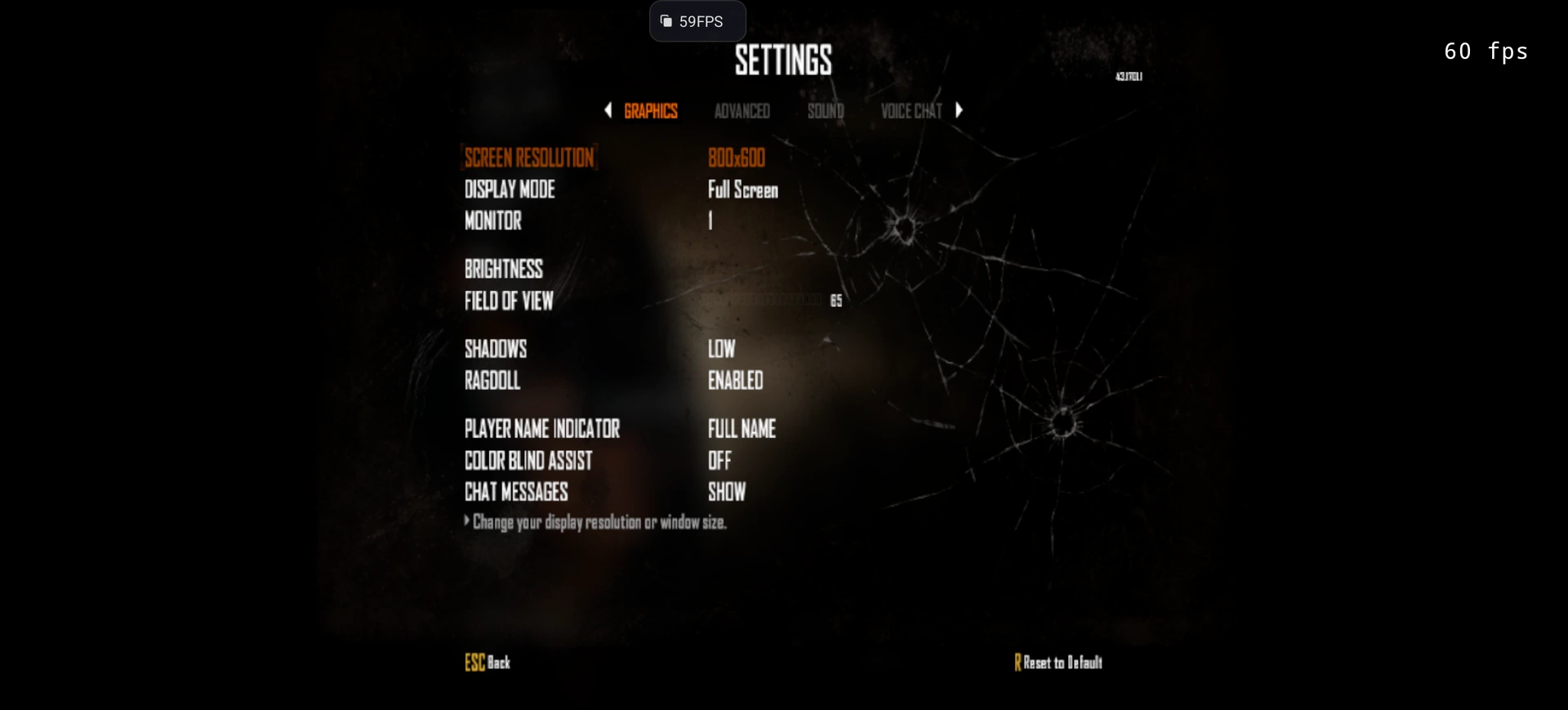
In Zombies, open Options → Settings → Graphics.
| Setting | Recorded value |
|---|---|
| Screen resolution | 800 × 600 |
| Display mode / Monitor | Full Screen / 1 |
| Field of view | 65 |
| Shadows / Ragdoll | Low / Enabled |
| Player name indicator | Full Name |
| Color blind assist / Chat messages | Off / Show |
The approximately 60 FPS Zombies observation belongs to 800 × 600 rendering. DroidDeck’s desktop resolution is a separate setting. Higher Zombies resolutions, advanced graphics values, and Multiplayer’s exact in-game graphics settings were not recorded.
Troubleshooting
| Symptom | Next check |
|---|---|
No SteamClient014, immediate exit, or a restart loop | Check the exact launch option and ARM64 tool on the specific Multiplayer or Zombies entry. Quit the game, stop the DroidDeck session, and retry through Steam. |
| The change disappears after restarting | Save it in Steam Launch Options. A temporary edit to DroidDeck’s generated environment is not persistent configuration. |
| Steam offers Remote Play | Install the component locally in the phone’s native Steam library. |
| Play appears to do nothing while Steam starts | Wait for the Library to finish loading before pressing Play again. |
| Zombies reports missing sound or image assets | Install and verify the original base game, Multiplayer, and Zombies, including their shared assets. |
| No public Multiplayer match is found | The verified route was Core Team Deathmatch. Population and network conditions can differ; a successful past test does not guarantee a current match. |
| A Steam Cloud conflict appears | Preserve the saves you intend to keep and resolve the conflict deliberately before continuing. |
| There are no touch controls | The controls were hidden for recording. Enable the on-screen controls for actual play. |
The source investigation found an imported Zombies folder with a replacement Steam API file and missing shared assets, including a cmn_root.all sound bank and image data. Restoring the complete original Steam installation resolved that asset failure. Use Steam verification instead of treating a DLL’s file size as proof of authenticity.
What the test established
| Test | Documented outcome |
|---|---|
| Official Multiplayer | Authenticated, joined a public Carrier Team Deathmatch, and spawned with other players; roughly 60 FPS displayed. |
| Multiplayer after a full DroidDeck restart | Steam Play reached the online menu with the saved launch option. |
| Official Zombies | Authenticated online and reached Farm Survival round 1, around 60 FPS at 800 × 600. |
| Original executables and Steam API | The source record reports SHA-256 matches against the owned PC installation. |
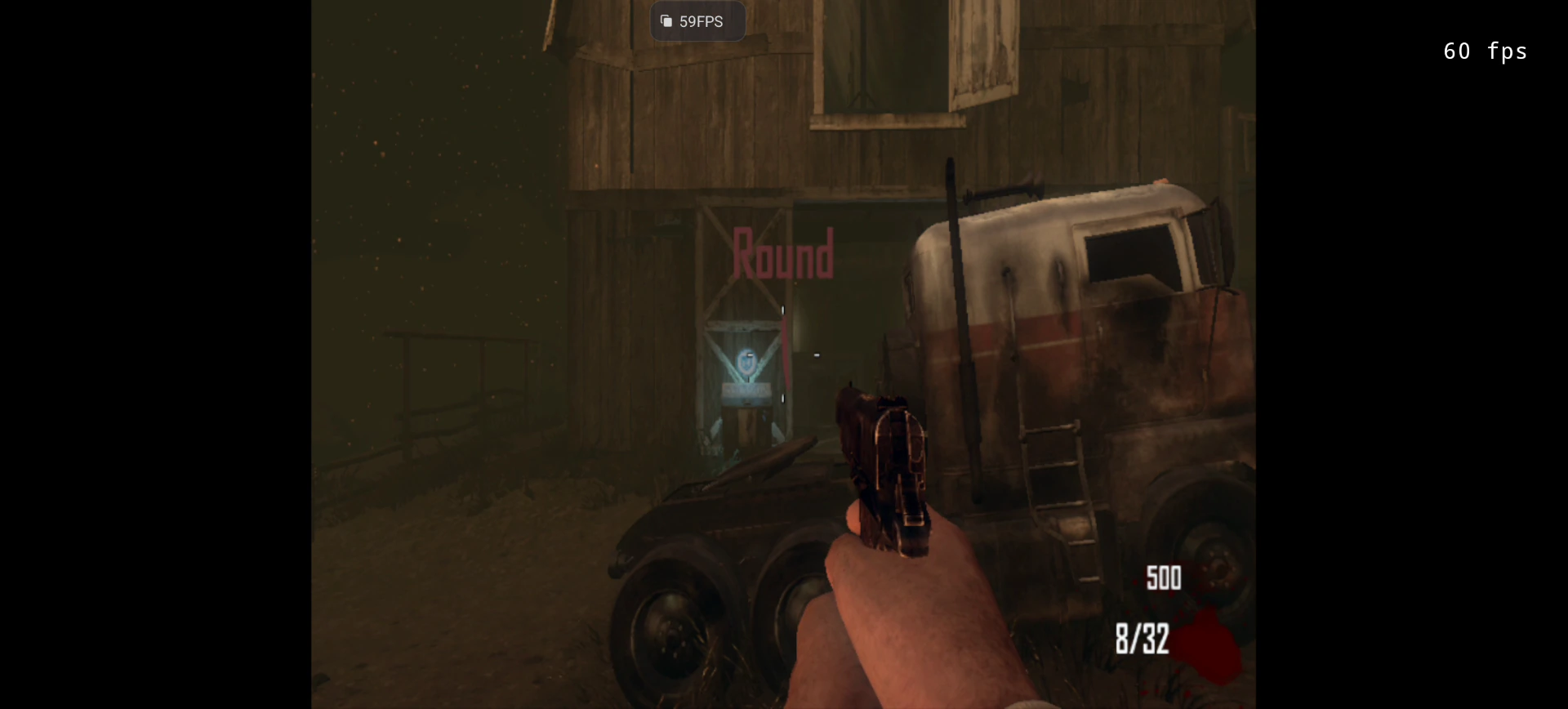
Not verified by that test: public Zombies co-op, Campaign, long sessions, other phones or GPUs, physical controller models, higher Zombies resolutions, or direct switching between modes inside the game.
The October 24 video uses a different configuration
The later Black Ops II video shows Multiplayer with LSFG 2× frame generation enabled. Its description reports roughly 77–90 game FPS and output boosted to 120 FPS. Those are the later video’s reported observations; they must not be substituted for the October 11 frame-generation-off result above. The later recording also shows a custom match with bots rather than the earlier public Carrier match.
For the full original evidence, see the 12 source screenshots and two original recordings. The recordings are 30 FPS captures; their recording rate is separate from the game’s displayed FPS.
Source and update record
Adapted from AlexTechGamer’s October 11 test documentation, source commit 42cb7c4. Source reviewed October 27, 2026. No new device test was performed for this article adaptation.
The original documentation is MIT licensed, copyright © 2026 bo2-android-kit contributors. Game imagery and trademarks remain with their respective owners; see the source notice.
Did this guide help?
Your feedback helps decide what to explain or test next.
Suggest a correctionFeedback records an anonymous count. It does not submit your name or contact details.